Showing posts with label technique. Show all posts

Wednesday, November 2, 2022

Cathedral Window


When I was putting together the new office, I had an ambition to do the outside-facing wall as a fake stone wall in more or less this style using painted styrofoam sheets. I ended up not doing so for a number of reasons (time and effort, fragility in a place where I'd be moving in some bulky furniture, etc.), but I still liked the idea. This came up again as I was looking at the end of one of the cabinet sections. The prefab cabinets have nice wood facings, but the sides are particle board. 

Ugly, but less expensive if you're lining up a bunch of them. If they're not entirely sandwiched between walls, you can buy a separate facing to put on the one at the exposed end. but we can do better than that, can't we?

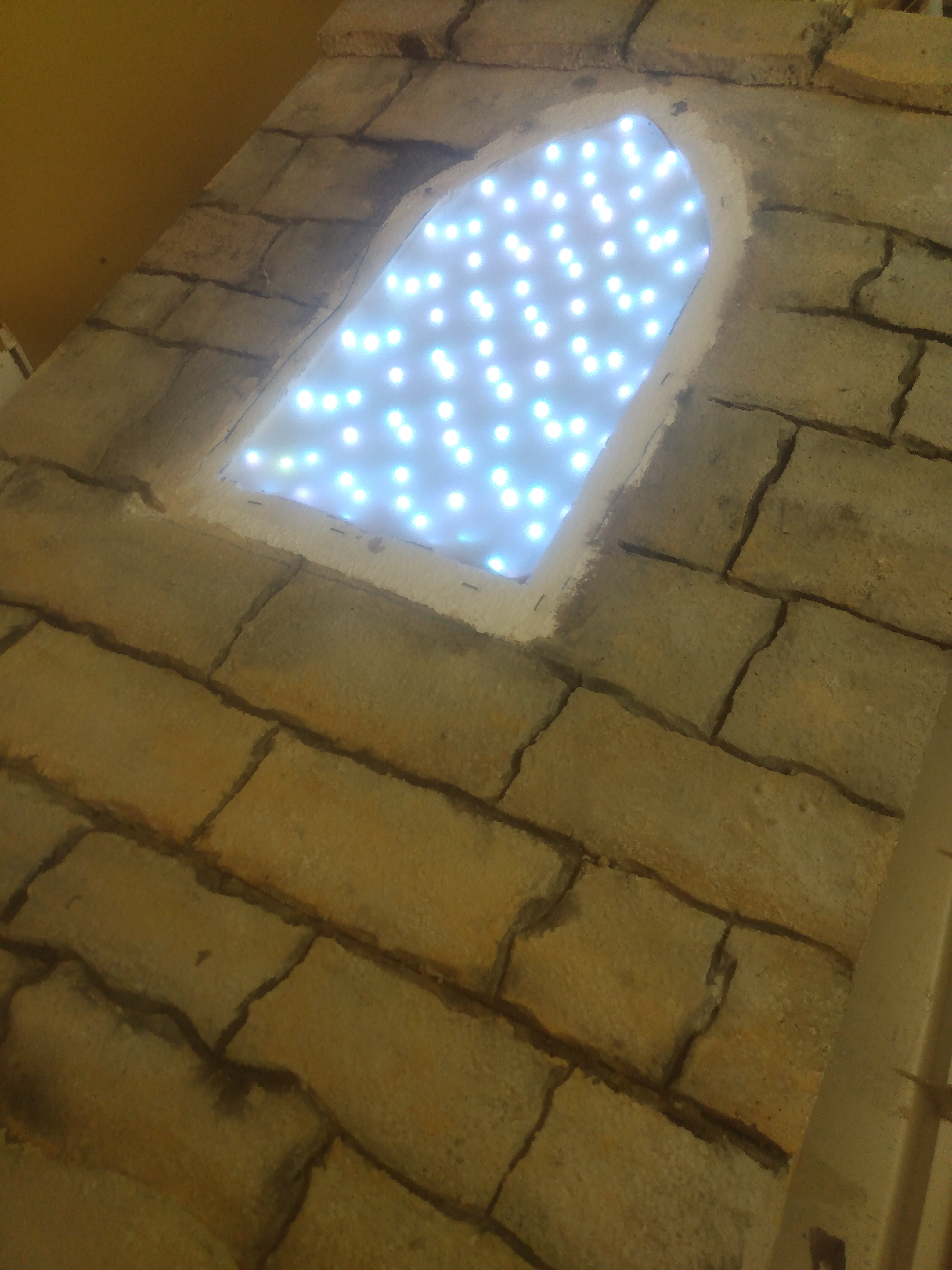
My basic idea was to turn that end into an illuminated window with a pointed arch using a strip of LEDs for a light source. I've got them kicking around, so why not? Step one was to get a suitable design for the window proper and get that together with the 3d printer. I sized it sufficiently large (about 15 inches from top to bottom) that I had to print it in two parts, running out of filament half-way through printing part two.

No matter; everything's getting painted anyway.

Step two is getting the basic structure of the wall it's going on set up. I got a suitably sized piece of thin plywood and sketched out where I wanted the window to appear.

Then I started cutting up some sheets of foam to fit. The window frame made a good template to cut through the foam down do the wood.


With the basic shape set up, laying down the strip of LEDs was next, turning back and forth within the window space. The strip actually starts at the bottom corner so that it can be plugged in.


They were bright enough that they shone through the unfinished foam. While it's all getting painted, I covered the section of LEDs from the edge to the window with a strip of foil before gluing it all down with foam glue.


Next came roughing out the pattern of blocks. Like that video linked above suggests, it's a good idea to do that in advance with a little thought rather than freehand it. I also cut out a frame and a few other bits to become "stone."


This is the messy part: cutting grooves. I used a Dremel with a wire brush attachment. Absolutely marvelous for cutting through foam sheets, but incredibly messy.


On to painting. This is after a pass of a light brown base coat, a little sienna on the lower edges of the "blocks," and a little green on the upper edges.


Followed that up with a somewhat diluted light gray and a wash of very dark gray to fill in the cracks. I found, as I often do, that my washes end up everywhere, not just where they're supposed to settle in, and there were several passes of wiping down the elevated parts and doing more passes of lighter colors where the wash bled in too much.


With that out of the way, it's time to mess with the lighting a little. A few sheets of a translucent but not entirely transparent plastic serve to soften the points of LED light.

(I experimented with a stained glass pattern behind the window, printing out a colored design on transparency paper. Unfortunately, the plastic simply refused to keep the ink and despite repeated attempts and overnight dryings, it would smear at the slightest touch.)

One of the nice things about foam is that it's really lightweight. The frame was secured with foam glue and some pins. To get the printed frame on, I glued some heavy-duty staples to the underside and pressed it in.


This fit very snugly against the cabinet end, but it's not done yet. I left the top and bottom edges clear so I could drill through the foam and backing and screw the "stone" wall securely to the underlying cabinet face.

...and then pin top and bottom pieces to cover the unpainted sections.


Plug in, and turn on the light.


Or, to get fancy, set the LEDs to change colors.


So now my office labyrinth is accompanied by a Gothic window.


Friday, June 5, 2020

Board II: Process Shots

I made another one of those wood and resin charcuterie boards. First, pretty picture:


And this time I took pictures along the way.

I started out with a piece of purpleheart, about 12" x 6", and cut it into pieces.


Then into the box/tray, lined with packing tape and sprayed with mold release. I clamped down half the pieces to keep them from shifting when I poured the epoxy and and fixed the others in place with hot glue, to see if that would work as well.


This is after the first pour, limiting the depth to about a quarter inch.


Once that set, the pieces were firmly in place and I could remove the clamps.


After two more pours, I could unmold it. Came out cleanly again this time.


I used a hand plane to chip off an accidental drip of epoxy onto the wood, then off to the router table with a roundover bit to round off the edges.


I may, again, sand the edges a bit more and finish it with some oil or sealant, but this is pretty much done.

Tuesday, June 18, 2019

The Knight Has A Thousand Eyes

So here's a thing:


This is a technique I saw somewhere and thought I'd give it a shot. The base on which these are painted are small glass bezels, about an inch and a half in diameter. Everything is painted with metallic shades of nail polish on the flat back. Start with the pupil and the dark rim; I used a pin to spread out the polish for the pupil in that more crazed pattern. Then paint on rings of colors coming closer and closer to the center, alternating with scraping lines radiating out from the center with the point of a knife.

These came out nicely, I think, but I have no idea what to do with them. Maybe find some temporary adhesive and put them on Osric.


Sunday, March 4, 2018

3d Printing Basics

For some time, I've been noodling with a post about what I think it's important to know about 3d printing. Basically, what I would like to have known when I started doing it. And here it is. 

Making and Modifying Models

3d printing starts long before the printing. It starts with the design of a 3d model, just as regular, on-paper printing starts with creating a document or image. There are many CAD tools which can be used to produce such models. In the past year or two, the free tools I've used in the past have moved to on-line applications rather than downloadable local ones, including Sketchup and Tinkercad. For something more heavyweight, there's Blender, which I've tried to use to little avail. The standard file format for use in 3d printing is STL (stands for stereolithography, which ironically is a completely different method of 3d fabrication than what most home 3d printers use).


Of course, you don't have to start from scratch. You don't even have to do any design work at all. There are plenty of places where you can download ready-to-print designs. I usually frequent Thingiverse and Youmagine. Designs downloaded form there can be sent to a printer without any modification on your end, or they can be used as the basis of your own designs.

CAD vs. CAM

STL files define a shape but are agnostic about how what you do with it (for example, the same tools you use to build 3d printable designs are also used for architectural modeling and creating items for 3d animation and games), so after the CAD stage of design (computer assisted design), there's the CAM stage (computer assisted machining). There are stand-alone pieces of software which do various parts of this task, but they're typically bundled with the same software used to control the printer. Cura and Repetier are excellent free tools for the job.

In preparation for printing, the shape is analyzed and a series of instructions designed for a specific tool are generated to physically produce it. This is sometimes called "slicing," since one of main operations is to cut the model horizontally into a series of two-dimensional slices. For example, a pyramid is approximately a series of successively smaller squares set atop one another. Most software allows you to change the settings for how your model is sliced and what other instructions are sent to the printer. Important settings include:
  • Temperature. Your hot end (the heating element which melts the filament so that it can be extruded) has to be hot enough to get the plastic soft and flowing, but not so hot as to burn it. Different filaments work in different temperature ranges, and even within recommended temperature ranges, there can be better temperatures for specific brands and hot end designs.
  • Thickness of layers. This determines the resolution of the printed piece in the 3rd dimension. For example, when printing out that pyramid, a 3d printer has to print out layers of finite height, so it can't do an unbroken slope, but it can print out a series of shorter or taller steps. The thinner the layer, or the shorter the step, the more closely it approximates that slope. Small values, measured in hundredths of mm, will give you very nice resolution, but take correspondingly longer.
  • Shell thickness. This may be divided into top, bottom, and side thickness.
  • Fill density. 3d printed items are usually not solid plastic. Rather, they've got an internal grid providing enough substance to hold together.
After some experimentation, I've found some default settings which I use nearly all the time. I print with PLA filament most of the time, which uses relatively low temperatures, so my hot end is usually set around 190-200C, with a layer height of 0.1mm (down to 0.05 mm if I want really high quality, up to 0.15 or even 0.2 if I'm OK with fast but coarse, or if the piece has very little detail and thick layers won't matter much), and 20-25% fill. Shell thickness on the sides is a function of the diameter of the printer's nozzle. That is, if you've got a 0.4mm nozzle, your shell thickness has to be in whole-number multiples of 0.4mm. A double-thick shell (say, 0.8mm with an 0.4mm nozzle) is usually pretty good, with top and bottom to match.

This process (CAM/slicing) generates a set of instructions telling your printer what temperature to heat up to, where to go, when to extrude filament and when to stop, and so forth, based on the design and other settings. These instructions are in a language called gcode. Those commands may look something like this:

G1 F1200 X180.564 Y50.739 E26.57755
G0 F4200 X181.130 Y50.739
G1 F1200 X181.759 Y51.369 E26.62196
G0 F4200 X181.759 Y50.803
G1 F1200 X181.696 Y50.739 E26.62644
G1 F1800 E25.62644
G0 F4200 X141.759 Y50.966
G1 F1800 E26.62644
G1 F1200 X141.533 Y50.740 E26.64239
G0 F4200 X140.967 Y50.740
G1 F1200 X141.759 Y51.532 E26.69827

However, you don't actually have to know anything about gcode to do 3d printing. The software handles it all for you, just as your printer drivers handle encoding data to send to your printer without you needing to understand the language in which it handles that conversation.

The Printer and Printing

At last, we look at the hardware itself. Most home and hobbyist printers do FDM (filament deposition model), which uses a plastic filament as its raw material (there's also DLP and SLA printing, which use a tank of photosensitive resin and various methods of exposing them to UV; these printers tend to be faster and more detailed, but the process is vastly more expensive). You'll almost always find filament in 1 kg spools at with a diameter of 1.75mm or 3mm. Be sure to get the right size for your printer!


This filament is drawn through an extruder at a metered rate. A heating element in the extruder assembly heats the filament to a semi-liquid state, and it's forced through a nozzle onto a print bed.


I have no recommendations for specific models of printer. That landscape changes too quickly. But I do have some recommendations on what to avoid, what to get, and what to consider.

Things to be wary of include:
  • Cheap kits. It's possible to get a very inexpensive DIY printer on Amazon and other retail outlets. They're not necessarily bad, but they do tend to be made by no-name overseas manufacturers. Some are perfectly good, but instructions may be incomplete or poorly translated, and if you've got a bad part, customer support may be weeks away. That may be tolerable for a second printer, when you've got a good idea of how and why things work and can potentially source replacement parts yourself, but it's a really good idea to go brand name for your first.
  • Proprietary filament. Some manufacturers follow the inkjet printer model: sell you an inexpensive printer and make it back on the printing medium. The printer won't work with third-party filament. Instead, you have to use cartridges they sell at a substantial markup over "open source" filament.
Things to get:
  • A heated bed. A common problem with 3d printing is bowing or curling. As the first few layers of filament cool, they shrink and peel away from the print bed, resulting in a print with a curved bottom. There are a variety of dodges around that, but by far the most effective is a heated bed. If the print bed maintains a temperature around 50-60C, those bottom layers don't cool to the point of shrinkage. Curling vanishes. No matter what it costs in addition to a basic model of printer, you'll more than make it back in savings on ruined prints.
  • Accessories. There are a few consumables and other bits and pieces you'll need for good printing. You want kapton tape, for example. This is a plastic which stands up to high temperatures well. A layer of this tape provides a protective layer to your print bed, preventing gouges when you have to chisel off prints which are really stuck on, as happens some times. You'll also want an offset spatula, bench scraper, or similar thin metal item to do exactly that. Finally, you'll want some material to help prints stick to the print bed. Exactly what you need depends on the material you're using. If you're using PLA (see below for more discussion of filament materials), that's cheap hairspray. I use AquaNet or its generic equivalent. If you use ABS, probably the second most common filament, you need a bit of a slurry of acetone and some ABS dissolved in it. Nylon wants a porous surface like paper or cardboard. Check manufacturer's recommendations. And it can't hurt to have a few craft basics like an Xacto knife and fine sandpaper and the kinds of drivers, wrenches, and other tools you'd use on a computer.
Things to consider:
  • Temperature range. A basic FDM printer can at least get up to the low 200s C, which is good enough to print in PLA. PLA, which is short for "polylactic acid," is the cheapest and most common 3d printing filament. It's a plastic made from corn. It's nontoxic and biodegradable and it's perfectly good for miniatures, game pieces, art pieces, and the like. It is not, however, either particularly durable or flexible, so it's not great for a good many practical applications. ABS, or acrylonitrile butadiene styrene, is what Legos are made out of. It's a much stronger, but it puts off an unpleasant odor when printing (so you don't want to be around), wants a heated bed (above) and higher temperatures, starting around 230C, if not hotter. And there are a variety of also-rans (nylons, polycarbonates, etc.) which print as hot as or hotter than ABS. Something that goes up to 230 is certainly good enough for PLA and maybe ABS. Up to 250 is good for ABS and potentially some other exotics, and something that goes up to, say, 280 can print in pretty much anything. If you're just want a starter printer, you don't need a seriously hot hot end, but if you're going into it knowing that you'll want to work in industrial-grade materials, then higher temperatures are a must.
  • Extra nozzles. The nozzle on your printer can and eventually will get clogged up and need to be replaced, so it's a good idea to start out by getting one or two extra for when you need it. What's optional is buying nozzles in different sizes. Most printers come with a nozzle with a diameter of around half a millimeter. That's essentially the size of the "line" it draws when it prints. A different nozzle, then, effectively changes the "resolution" at which the printer prints. For very fine work, you may want to use an 0.3mm or 0.2mm nozzle (I've worked with nozzles as small as 0.1mm, but it was painful to work with), while for large pieces, a larger nozzle can get the job done faster (I printed parts for what was ultimately an 18" tall sculpture with a 1mm nozzle and it came out just fine).
  • Print volume. This is one of those "get what you pay for" things. Smaller printers are cheap, and bigger printers are more expensive.

Sunday, January 31, 2016

Diamond Distribution

The work with stone I've been doing has been marvelous fun, but there's a significant problem: like math, stone is hard. The carving has to go very slowly, taking very shallow cuts, and it is absolute hell on the bits I've been using. Carbide is great material for wood, plastic, and even some metals, but rock? I can easily kill a bit even on a small piece like the "noncompliant" carving.

So on a tip from the assembled wisdom of the internet, I decided to try a diamond bit. I happened to have a narrow diamond bit intended for engraving for a Dremel tool, which just happens to use the same 1/8" collet as most of the other bits I'm using.

Turns out that it works wonderfully. Working stone still requires slow speeds and shallow cuts, but I could turn up the speed a little bit and double the nearly-negligible depth per pass. Now, twice almost-nothing is still not very much, but it's still effectively halving carving time, which saves tremendous wear and tear on my router.

I decided to make some appropriately themed coasters for my lovely and talented spouse. I laid out the designs to carve a bunch of different symbols within a grid, getting all the carving done in one long job so I could move on to concentrate on post-processing later. I started with cheap slate tiles from the hardware store, but slate's limitations quickly became apparent. The natural variation in the surface of the slate, which is one of the things that makes it attractive, turned out to be greater than the depth to which I was cutting (about 0.8 mm). There were spots where I got no carving at all because the bit never got as far down as the stone, and at least one other where the stone was sufficiently thick that I ended up carving into much greater depth than intended and ended up snapping the bit. Is OK; I had a spare. Next up was white marble tile. The flat surface proved much friendlier to carving.


For post-processing, I experimented with a few more things. I had some metallic ink in dropper bottles, so I tried filling the carved recesses with it. Turns out that works pretty well, too.


I probably should have cut the coasters up first before using the ink, but it turned out OK in the end. Instead of taking the extra time and bit wear to have the CNC machine carve the coasters out all the way, I just pulled out the trusty old tile saw (though I did have the CNC lay down some guide lines). The only real problem I had is that one of my few successful slate pieces flaked a whole layer off the bottom. That would have been a problem had I been worried about thickness. The ink, while not water-proof, was sufficiently water resistant that I could clean them up with a quick rinse and wipe. A little adhesive felt on the bottom, and...


Some of those are unfinished. I realized too late that I don't have red, so the Superman and Flash ones will need a bit of work, and I've got a Huntress likewise awaiting purple. However, I think the carving went well here.


Sunday, January 17, 2016

"Inlaid" Stone Carving

This is something I've been wanting to work with for a while. It's relatively easy to get contrasting colors when engraving or carving. Just paint or stain the surface; the area which is carved away will reveal the original color of the material. But I wanted to do it the other way around: leave most of the material the original color and fill in the carved bits with something else.

The obvious dodge here is to mask the entire surface with something that'll stick around during carving, throw paint/stain/whatever at the piece post-carving, then remove the mask which has been protecting the original surface. But how to do that, exactly?

This probably would have been easier if I'd started with wood rather than stone, but that's where I went with it. My first attempt was to use painter's tape. That didn't work at all. The milling goes just fine (Carbide bit a lotsa rpms? Yeah, a little sticky paper won't slow it down.), but the tape doesn't stick well enough. It started peeling up around the carved areas pretty quickly. Next approach: wax.

Step one was to shave a bunch of flakes of parafin wax.


Then get a garden variety marble floor tile and put the wax on it.


I heated the tile in a very low oven to help the melting process, but most of the work was done with an iron, protected from the wax by a layer of foil. That worked remarkably well, though I had to add a bit more to the corners.


Once, the wax cools (which is pretty quick this time of year), it's off to carving. I zeroed my Z-axis to the surface of the marble. Like the tape, the thin film of wax offers no appreciable resistance to the carving bit.


Once the carving is done, there's a lot of dust, so I spent some time gently dusting it off. Then I masked over the under-waxed corners and edges and hit the piece with some spray paint.


(That design, by the way, is the House Carlyle crest from Greg Rucka's Lazarus. You should read it.)

After a few hours to dry, it's back into a low oven to soften the wax. Parafin is flammable, so this is probably a bad idea and I should have used a hair dryer or the iron again.  Anyway, when it's been heated enough for the wax to soften ("Bake at 200 degrees for 15-20 minutes or until golden brown."), scrape the layer of wax and paint off, mop up excess wax, and:


Not perfect, but not bad, either. This is probably close to the best I'll be able to do, but it might help if, on the carving step, I took more shallow passes rather than one deep one (deep, in this case, being 0.02 inches), but adding up to a greater total depth so that the paint can get a bit deeper.

Monday, February 9, 2015

The Factory States


So what is my robot printing?


Well, a guy over on the SJ Games forums had an idea about printing out the 3d Ogre standup sheets, created as part of the Ogre Kickstarter campaign, on clear plastic, producing clear Ogres where you only see the design, not the material it's printed on. I thought that was rather clever, and then realized that if I could extract the shapes from the graphics in the PDF, I could print out the shapes and assemble my own plastic Ogres. I got to the point of having .stl files ready to print:


 And then I thought, "Hang on. I'm dealing with a 3d printer. Why am I messing around with 2d objects?" The goal became designing and printing a full 3d Ogre.

Design was largely an exercise in figuring out how to use Sketchup and what plugins I wanted to add in. Starting with some of the pieces in the "2.5d" design, there was a lot of use of the extrusion and scaling tools, and it all became much easier when I found a plugin that made geometric solids.


So far, so good. But printing was a problem. When I converted the design to gcode, Slic3r dropped significant parts. The conning tower, for example, simply vanished:


Why was it doing this? I had no idea. But on a hunch, I switched to different software for slicing and printing. Cura seemed to treat the design more as it was intended:


 That looked more promising, so I sent it to the printer. And this is what I got:


This Mk. IV is about three inches long. I note that features smaller than about a half-millimeter may as well not be there. I may play with this a bit and add a few more surface features like some tread texture. I also want the conning tower to be a bit different in various ways, and the front part should have steeper angles. And at some point, I should build a Mk. V.

Sunday, January 4, 2015

Phone Case, Mk. I

We got the kid an inexpensive cell phone for Christmas. Printable cell phone cases are a dime a dozen on 3d printable sites, but pretty much only for iPhones and Galaxies, so if I want to print a case, I have to design it myself.

It was harder than I expected. Finding the basic dimensions was easy, getting the precise locations of all the buttons and ports and such a bit more difficult (it involved wrangling a rigid ruler held up against slightly curved surfaces), and getting Sketchup to play along was remarkably difficult.

I started by drawing a basic rectangle. My plan was to poke some holes in it, use the offset tool to expand the area by the desired thickness of the sides, and the push/pull tool to raise the base and edges by suitable heights.

The biggest problem is that, once I made the desired "cuts" in the base, using the push/pull tool would raise or lower the face and leave walls outlining the cut-out for the camera and the name, but didn't extrude it into a solid. I had to copy the base, raise the existing copy to the desired thickness, and then paste a copy of it back at the original height to close up the solid. I also couldn't figure out how to cut holes through the raised sides, so the cuts go all the way up. Here's what I ended up with:


The printing took forever, but it worked fairly well:


If/when I do this again, I'll probably take a different approach. I'll probably do something similar with the base, but for the sides, I'll design slabs of the appropriate dimensions for each side, poke holes as appropriate, and rotate them 90 degrees to use as sides.

Oh, and ideally I'd use Ninjaflex or some similar flexible plastic rather than relatively brittle PLA.

Tuesday, December 30, 2014

Hollow Book


Certain persons I am married to wanted external digital storage, but a hard drive or thumb drive is kinda dull. I decided to hollow out a book to hide an external hard drive in. This is actually really easy if you've got a few common power tools.

For this project, here's what I used:

Materials
  • useless old book
  • thin plywood
  • screws longer than the book is thick
  • glue
  • foil or wax paper
Tools

How To Do The Thing

Start with a book you don't want. In my case, it was a collection of sermons published in 1902, which I picked up for free from the discards bin at the local used book store.


Cut out two pieces of plywood to approximately the shape and size of a page of the book. Sandwich the pages to cut between the pieces of plywood and clamp in place.


Outline the space to cut out. I'd try to leave at least a half-inch margin around the edges, but you may be more daring. Drill a couple of screws through the pages in the part to be cut out and remove the clamps. Get heads of the screws as close to flush with the wood as possible. The screws will hold the pages together (that's key to the whole enterprise; the drill and saw will cut the pages easily, but you need clamps and screws to keep the whole thing from flying apart and tearing), but you want them out of the way for when you cut.


Drill out the corners of the space you've outlined to cut. You want the holes to be big enough to fit the blade of the saw into. I used a half-inch bit, which is more than generous.


Put the drill blade through one of the holes and start cutting along the outline. I used a bench vice to hold it in place during cutting, and extra clamps around the edges just to be sure things didn't come apart. You can never over-clamp these things. The center should come out in a nice, solid block.


Dilute the glue with some water for a brushable consistency and brush the inside cut edges. Insert sheets of foil or wax paper between the block of glued pages and the covers, weight or clamp lightly, and let dry.


Once the glue had dried, peel off the foil/wax paper. You now have a hollow book ready to use. For example, to put a USB external hard drive in.


What I did differently from a simple program of "hollow out the book" here was:

1) Cut out about half the pages rather than all the way through the book. This gave me a platform to run a string through, to hold the drive in place.

2) Slice a notch into one edge with an Xacto knife to make a channel for the USB cable.